Anime style lightning effect
Contents
I appreciated the next video which explains how to make the effect in details.
Lightning animation
This section was written on July, 2026.
Next animation was the one I made by following steps:
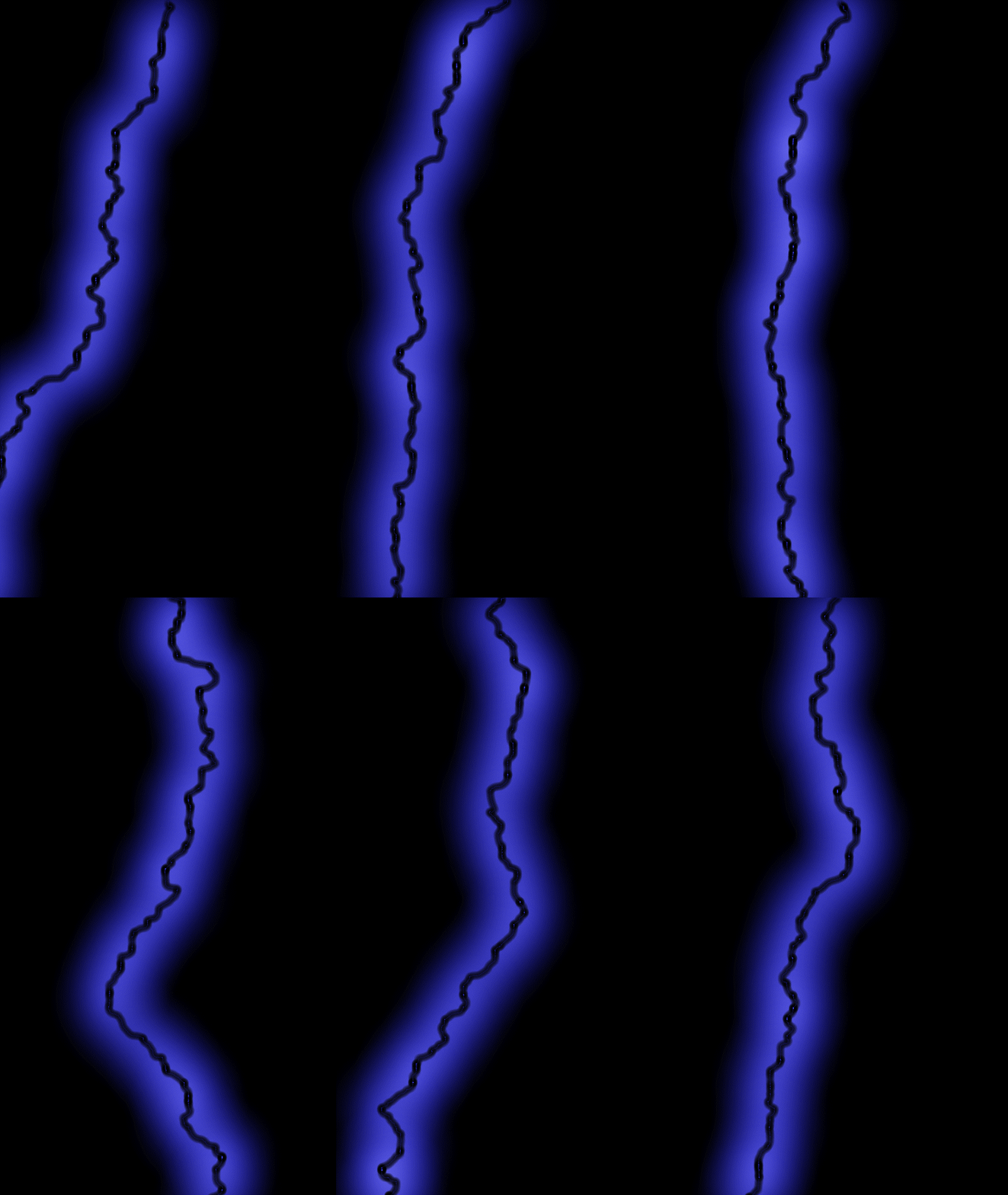
1. Base layer
- Create new solid layer
- Add an effect Advanced Lightning and set following properties:
- Glow Settings > Forking to 0, to remove lightning hairs
- Change other settings on Glow settings and Core Settings to get what you want
- Animate the layer by
- Clicking the stop watch on the Conductivity State
- Set the different values of Conductivity State in a few key frames
2. Core lightning layer
This will change the color of the core of the lightning to the color you want It's because core and glow settings use screen-style blend instead of normal blend. So if the core color is a bright color like white, this isn't necessary.
- Duplicate the first layer.
- Set the properties on the new layer:
- Set Glow Settings > Radius to 0
- Set Core Settings > Color to the color you want
- On the previous layer, set Core Settings > Radius to 0
Then I was able to get what I wanted. The video did pre-compose the new layer, add Fill effect and change the color of the effect, but I didn't see any difference.
Variations of Advanced Lightning
The above lightning only goes from top to bottom, because the Lightning Type is Direction. We can get some different animations with different lightning types. Here are a few examples I played around.
However, for more details about Advanced Lightning effect, next video was the most helpful for me to walk through the details:
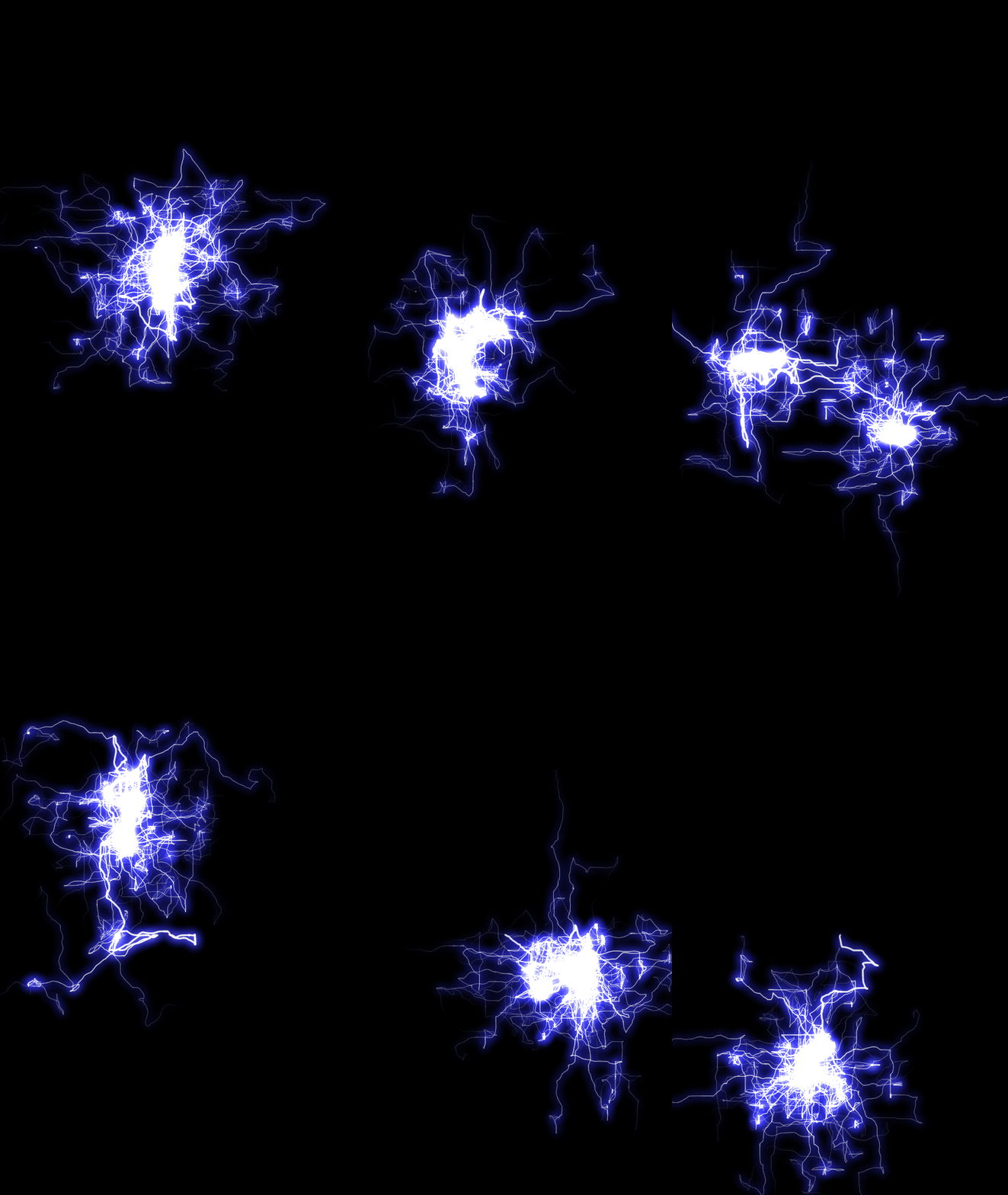
Bouncey
Here is the lightning animation with Bouncey Lightning Type.
Anywhere
If it's set as "Anywhere", the lightning goes everywhere. The example of the animation is next:
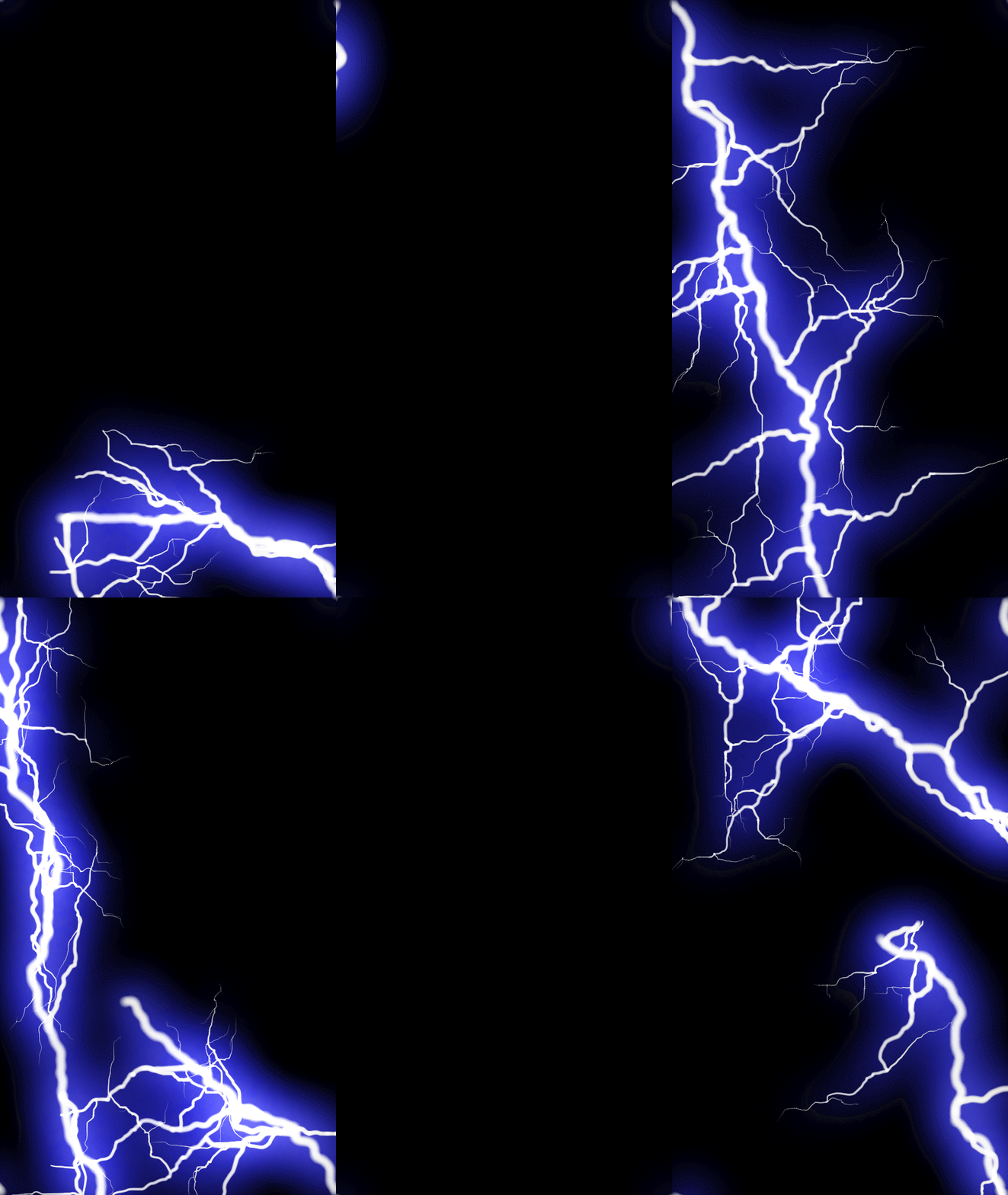
Rough steps to create this was
- Add new solid layer with Advanced Lightning effect, and set
- Lightning Type to Anywhere
- Set Conductivity State to make this animated
- Set Forking to 50%
- Set Core Settings and Glow Settings as we want to
- Enable Composite on Original
- Set Outer Radius to make the effect enough to go a lightning from one edge to another
- Duplicate the Advanced Lightning 3 times and on each set Origin to put them on 4 edges