Anime style fire
Contents
I appreciated the next video which explains how to make the effect in details. Use audio on the Android App to auto-translate.
Fire animation
This section was written on July, 2026.
The core parts of this frame are
- Shape layer to draw a shape
- Use Wave Warp and CC Sphere effects
Next animation was the one I made by following steps:
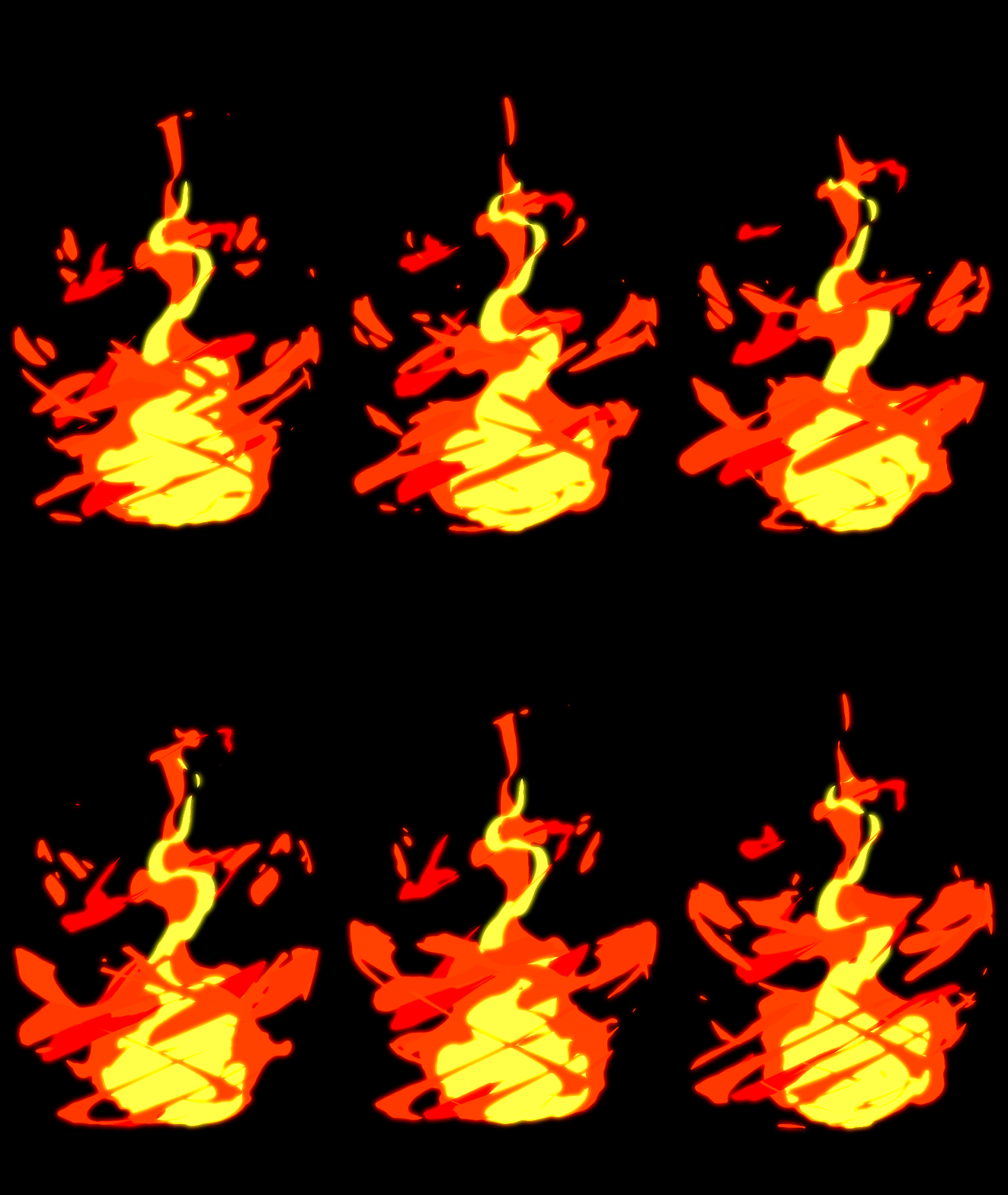
1. Create a fire with one color
- Create a composition main and select it
- Select "Path" tool and add a rough shape of a water drop. It should create a "Shape Layer"
- Click and drag each point to enable to make the edge round instead of straight lines
- Set the colors of Stroke and Fill to orange and name the layer to Orange
- Add the effect Wave Warp to the layer and set Property
- Wave Type to the Circle
- Wave Height 25, Wave Width 80, Direction's angle to 35, for instance
- Set Pinning to the Bottom edge
- Preview the animation and see if it already looks like a fire
- Duplicate the effect and set Properties
- Wave Height -25
- Direction's angle to -40
- In order not to move the bottom of the shape
- add new ellipse on the bottom of the shape as a new layer.
- Rename the layer as orange_core
- Copy 2 effects of Wave Warp effects from the orange layer into the orange_core layer
- On the properties on the first Wave Warp
- Set the Wave Height to 15
- On the properties of the 2nd Wave Warp 3. Set the Wave Type to Smooth Noise 4. Set the Wave Height to 100 5. Set the Wave Speed to 0.5
- Adjust the path's shapes of the layer orange when needed
2. Create an inner fire
- Duplicate the orange layers and name them to yellow and yellow_core layers
- Change the color of the new layers to yellow
- Set the paths of the Contents of the yellow layer to make it smaller than orange
- Set the properties of the yellow layer
- Set the direction to a different value from orange layer, like 3
3. Create sparks
- Duplicate the composition main and create sparks 1
- In the sparks 1 composition, delete layers o
- Set the properties of the 2nd Wave Warp of the layer
- Set Wave Height to -150
- Set Direction's degree to -36
- Duplicate the 2nd Wave Warp, and of the new Wave Warp, set
- Wave Type to Smooth Noise
- Wave Height to 30
- Wave Width to 100
- Direction to -40
- Wave Speed to 0.5
- Duplicate the orange layer and delete 2nd and 3rd Wave Warp effects
- Set following properties of the 1st Wave Warp on the new layer:
- Wave Type to Uncircle
- Wave Height to 230
- Wave Width to 135
- Direction to -25
- Wave Speed to 0.5
- Set the Mode of the new layer to Silhouette Alpha to extract all animations that are below those layers by the layer
- To make the frame smaller, to set the path of the first layer to smaller
4. Create another sparks
Create sparks for far from the core of a fire
- Duplicate the composition "sparks 1" and rename it to "sparks 2"
- On the 1st orange layer 3. Set the path to make it wider and a little taller 4. Set the following properties of 2nd Wave Warp effect: 1. Wave Height to 60 from -150
- On the 2nd orange layer
- Set the path to the similar width as the first layer
- Set the following properties of Wave Warp effect:
- Wave Height to 200
- Wave Width to 100
- Direction to -40
- In order to make the central part of this animation less, duplicate the 2nd layer
- Set the path to thinner
- Set the following properties of Wave Warp effect:
- Wave Type to Circle
- Wave Height to 25
- Wave Width to 80
- Direction to -36
- Duplicate the first Wave Warp effect and set the following properties of new effect:
- Wave Type to Smooth Noise
- Wave Height to -260
- Wave Width to 180
- Direction to -40
5. Compose all compositions
- Select all compositions, fire, sparks 1, and sparks 2 and create another composition by "New Comp from Selection". Let's say it's "finish"
- Add an effect "CC Sphere" on sparks 2 composition in the "finish" composition and set properties of the effect by followings:
- Rotation > Rotation Y to 60 degrees
- Radius to 400
- Light > Light intensity to 0
- Shading > Ambient to 100
- Set Offset to make them to go around the center 6. Note that I created the animation as the portrait, but that caused this animation failed to go around to the top of the fire composition's fire. The fix was to set the size of composition of spark 2 to the square
- Duplicate the composition and update Rotation Rotation Y's degree and offset to make it go around in the other side.
- To adjust a few effects, add a new Adjustment layer and on the layer
- add "Roughten Edges" effect
- And set Border to 4
- I cannot see any difference
- Add a new effect Posterize Time and set:
- Set Frame rate to 12
- Add a new effect Glow
- Set Glow intensity to 0.7, for example
- Duplicate the Glow effect
- add "Roughten Edges" effect
- Adjust properties like colors on each layers for cleaning up
Afterward, the video didn't describe anything, so I updated a few things by myself
- Add Fill effect to spark 1 composition to make the color red
- I made the spark 2's composition to shorter
- Duplicate the spark 2 again, set Transform Y's degree, add Fill effect to change the color